NOTE
This is a historical post about Omarchy 3.4.0. Quattro (4.x) uses Lua configuration and its own desktop shell, and remembers separate AC and battery power profiles. The configuration snippets below describe 3.4.0; do not apply them as Quattro instructions. See the Quattro release notes.
I was looking forward to Omarchy 3.4.0 because quite a few pull requests I made were included. They are little things, but I think they improve the quality of life for those using this wonderful Linux distro.
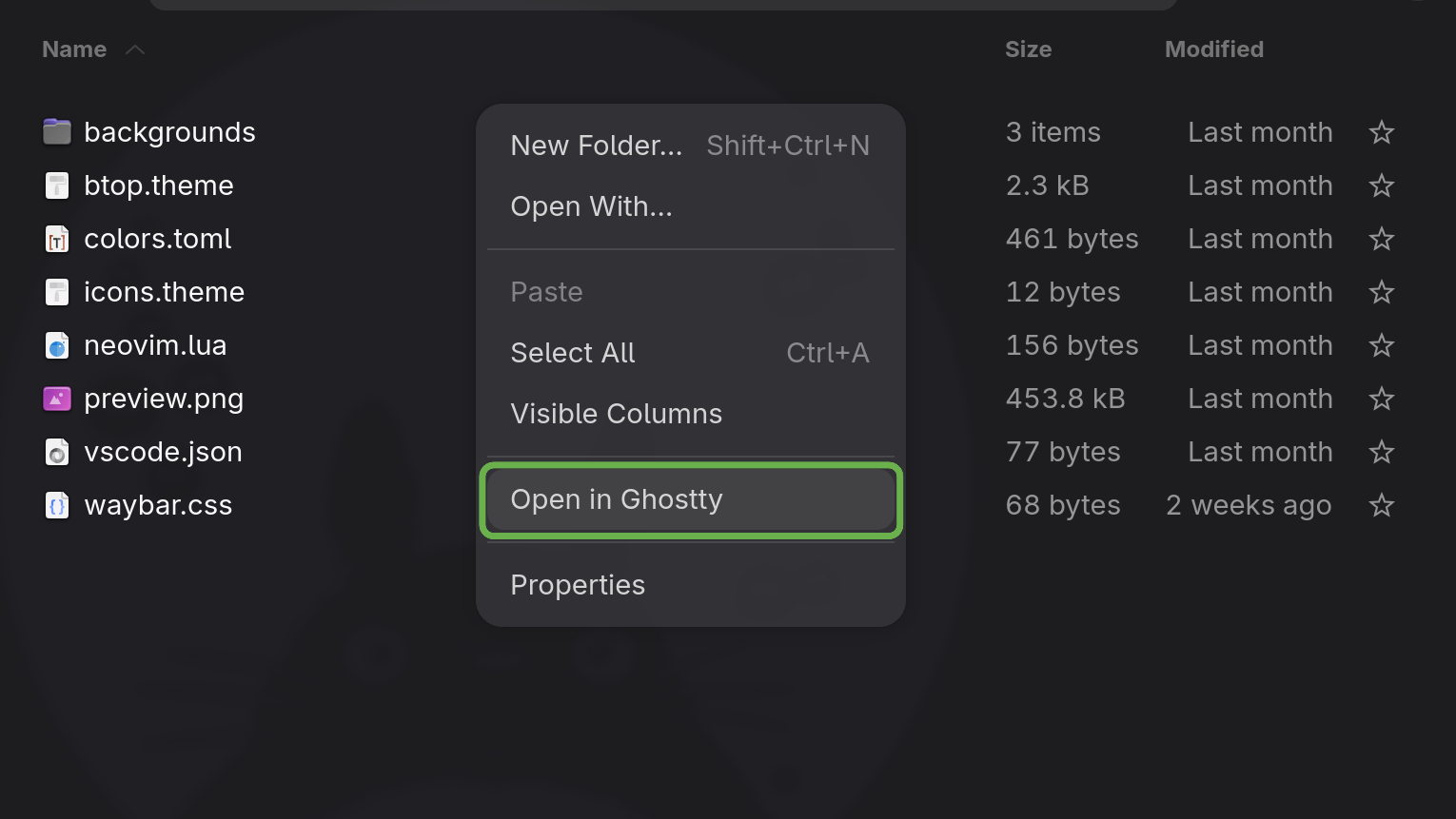
1. Open a Ghostty terminal from the file manager
Ghostty is (was?) the default terminal application in Omarchy. GNOME Files is the file manager that you access with SUPER + F.
Now with this PR, if you want to open a terminal from any folder, right-click anywhere and you will see an “Open in Ghostty” menu item.
Someone else also made a PR to do the reverse: open Nautilus in the terminal working directory with the SUPER + ALT + SHIFT + F shortcut. The shortcut should be added to your bindings.conf automatically. If not, just add the following line:
bindd = SUPER ALT SHIFT, F, File manager (cwd), exec, uwsm-app -- nautilus --new-window "$(omarchy-cmd-terminal-cwd)"~/.config/hypr/bindings.conf2. Automatically switch power profile on battery
Omarchy ships with powerprofilesctl, a utility that lets you configure the CPU power mode. Clicking the battery icon in Waybar lets you choose one of the following profiles: performance, balanced, or power-saver.
Typically, you want to switch to a less power-hungry profile when running on battery. With this PR, it’s now baked in by default.
When your laptop is plugged in, the power profile is automatically set to performance (when available). When unplugged, it switches to balanced.
If you don’t want your power profile to switch automatically, all you have to do is delete this file:
sudo rm /etc/udev/rules.d/99-power-profile.rulesIf like me you prefer to use the balanced mode when plugged in to avoid annoying fan noise, you can edit the rules file to use balanced mode when plugged in and power-saver on the battery.
3. Auto paste for the emoji picker
The first time I used the SUPER + CTRL + E shortcut to select an emoji, I wondered why it wasn’t appearing under my cursor. Turns out the emoji is copied to the clipboard and you still had to paste it.
This PR takes care of the pasting part, so now when you select an emoji, it will automatically be added where your cursor is. It’s a little thing, but it makes for a faster and more intuitive experience.
4. Install a web app with the default icon
Whenever I installed a new web app, I used to struggle to add the appropriate icon. I had to scrape it from the website and convert it from ICO to PNG. This PR makes the process much easier. Now, if you don’t provide an icon, it automatically fetches the default one from the website — no more manual steps required.
5. Hide the keyboard icon from the waybar tray
Oh my god! I worked so hard to get rid of that pesky little useless keyboard icon (fcitx5) from the waybar. Probably more than I should have but now its gone! It’s funny because I think that was my first post on r/omarchy.
More to come…
There are a lot more goodies and fixes in this new release. I’m having fun learning tmux, which also shipped with Omarchy 3.4.0. That will probably be the subject of a future blog post.