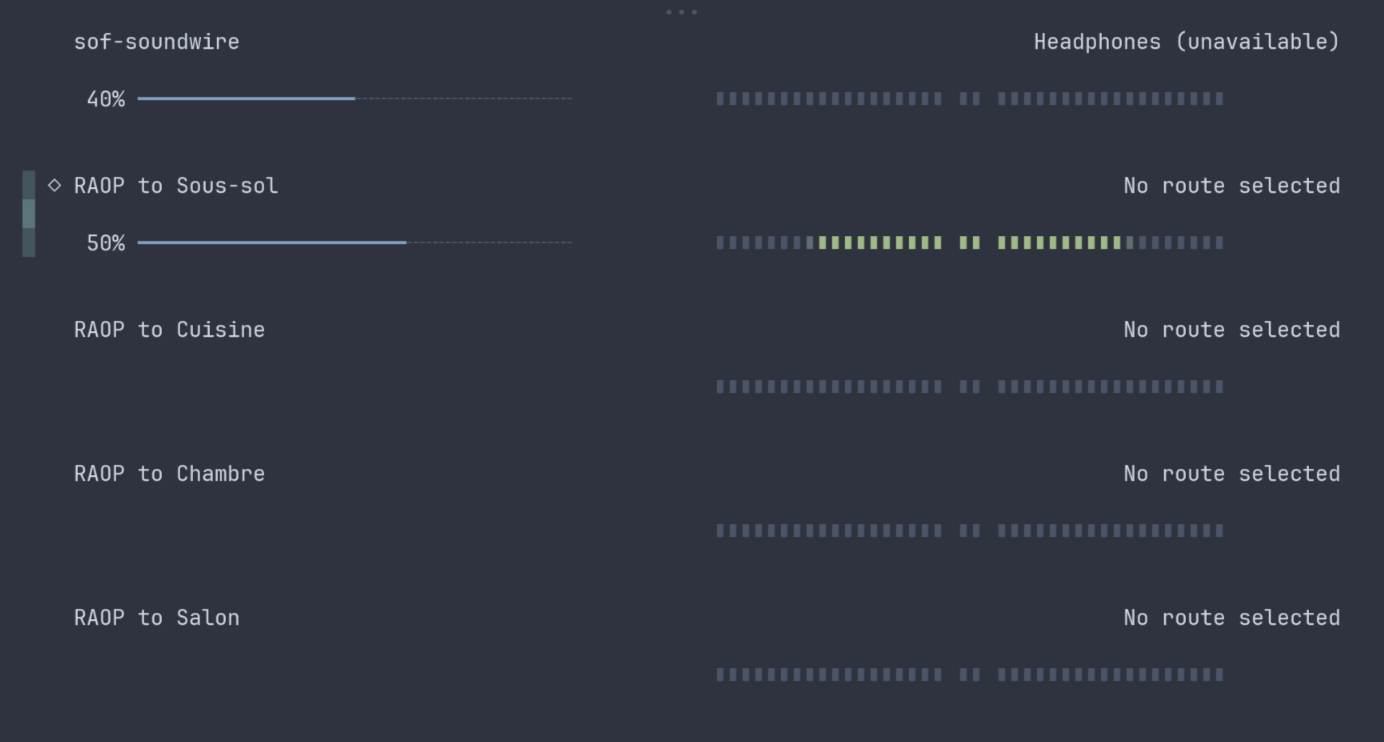
Update (2026-10-01): The restart command and audio controls below have been updated for Omarchy Quattro. The header image shows the older Wiremix interface.
My Thinkpad X1 laptop speakers sound terrible and so I wanted to be able to stream audio to my Sonos speaker that stands on my desk next to my computer. This works out of the box on Omarchy with Spotify Connect but I wanted to make it work not just for music but for general usage as well like watching Youtube videos.
I found this helpful procedure on the ArchWiki and I got it to work pretty easily following these simple steps.
1. Install the pipewire-zeroconf package
It enables automatic discovery and connection of audio and video devices on a local network using Zeroconf protocols. I’m not sure what it means either but trust me, you need it!
sudo pacman -S pipewire-zeroconf2. Load the RAOP Discover module
Copy the following code to /etc/pipewire/pipewire.conf.d/raop-discover.conf or ~/.config/pipewire/pipewire.conf.d/raop-discover.conf. Personnally I prefer to put things in my home config directory and back it up with YADM :
context.modules = [
   {
       name = libpipewire-module-raop-discover
       args = { }
   }
]raop-discover.conf
3. Open up firewall ports for incoming traffic
Now I only use Sonos devices and I haven’t tried this config with other devices such as Homepods. But for Sonos, you do need to open up some ports for incoming UDP traffic. That’s the main reason why I haven’t submitted a PR to Omarchy for this.
sudo ufw allow 6001/udp comment "Stream to Airplay"
sudo ufw allow 6002/udp comment "Stream to Airplay"
4. Restart audio
Finally, restart the audio services for the changes to take effect. Quattro’s audio restart command handles PipeWire and WirePlumber:
omarchy restart audioNow click the speaker icon in the top bar or press SUPER + CTRL + A to open Quattro’s Audio panel. Look for your AirPlay speakers among the available audio outputs and select the one you want to use.