NOTE
Updated for Omarchy Quattro (4.0.4) and Lua window rules. The screenshots show the original Typora example.
One thing I don’t miss about macOS and Windows is the pile of floating windows stacked on top of one another. I much prefer the clarity of a tiling window manager paired with workspaces. No more hunting around and Alt-tabbing my way through a messy desktop.
But like any idea taken too far, there are times when a small floating window simply makes more sense. Let me show you a concrete example and how to solve it.
Typora’s print dialog
I really like Typora for writing. Quattro now ships Omawrite as its default writing app, so install Typora separately if you want to follow this particular example.
From time to time, I like to print documents for proofreading. Here’s what happens when I open Typora’s Print dialog:
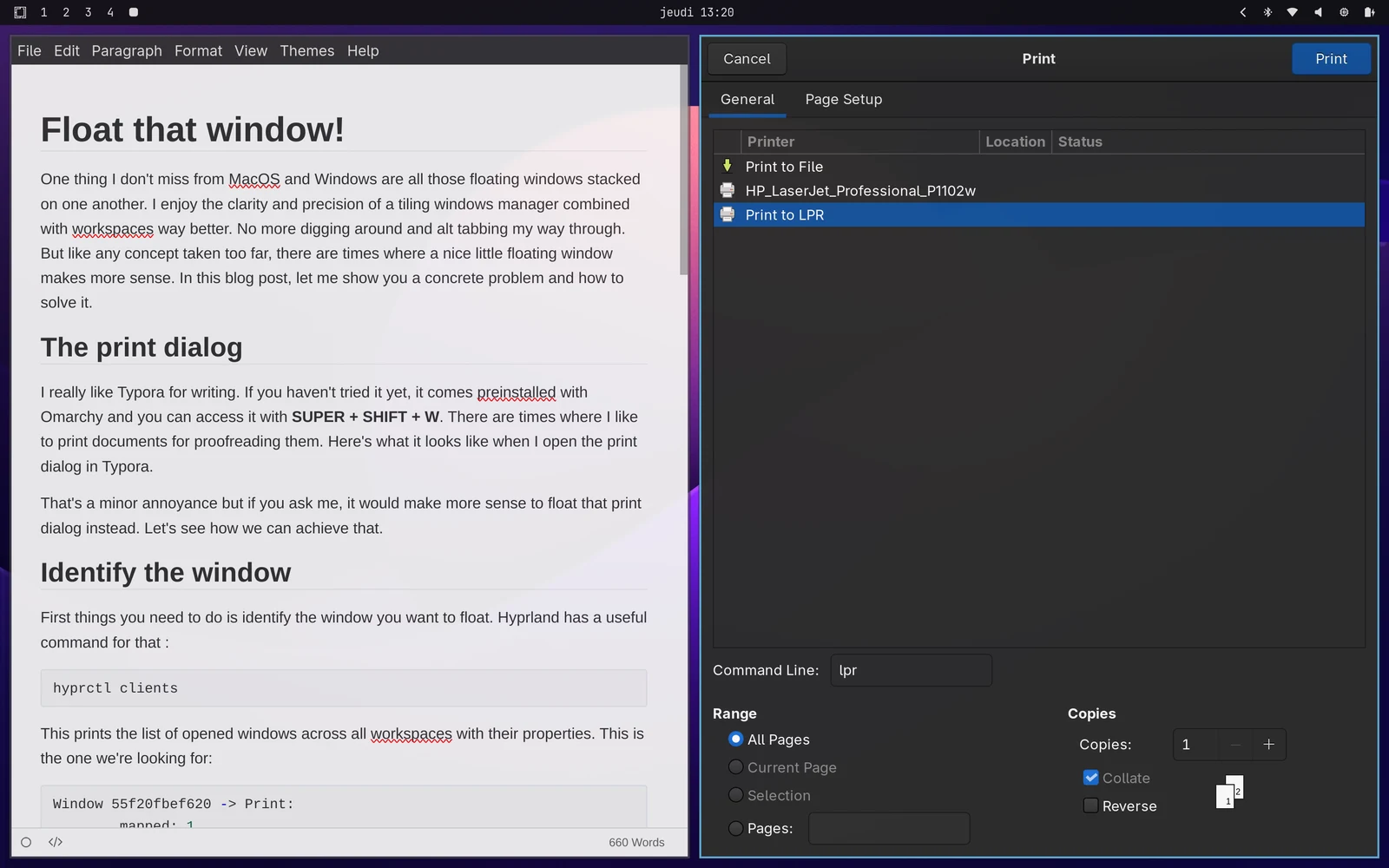
That’s not terrible, but it is a bit silly. A print dialog is exactly the kind of thing that makes more sense as a small floating window on top of the editor.
Let’s fix that.
Identify the window
The first thing you need to do is identify the window you want to float. Hyprland has a useful command for that:
hyprctl clientsThis prints all open windows across all workspaces along with their properties. Here is the one we’re looking for:
Window 55f20fbef620 -> Print:
        mapped: 1
        hidden: 0
        at: 2647,38
        size: 1181,1300
        workspace: 3 (3)
        floating: 0
        monitor: 1
        class: Typora
        title: Print
        ...
The most reliable way to target a window is usually with its class and title. In this case, the class is Typora and the title is Print.
Create a windows.lua file
Your Hyprland config lives in ~/.config/hypr/. Quattro’s main file is hyprland.lua, which loads the defaults and then your own overrides.
We could add window rules directly there, but I prefer to keep things modular. Add this line at the bottom of hyprland.lua, after the existing imports:
require("hypr.windows")~/.config/hypr/hyprland.luaThen create ~/.config/hypr/windows.lua. Omarchy’s bootstrap adds this directory to Lua’s module path; see the default configuration.
Add the rule
The Lua window rules documentation covers the available matches and effects. Omarchy also provides an o.window helper. There are a lot of options, but the syntax is well documented and full of examples.
For this case, we want to match windows with the Typora class and Print title, then apply the float and center effects:
o.window({ class = "^Typora$", title = "^Print$" }, {
  float = true,
  center = true,
})~/.config/hypr/windows.lua
Notice the ^ and $ characters. Those are regular expression anchors. They make sure we match the exact strings and not something broader like Print Settings.
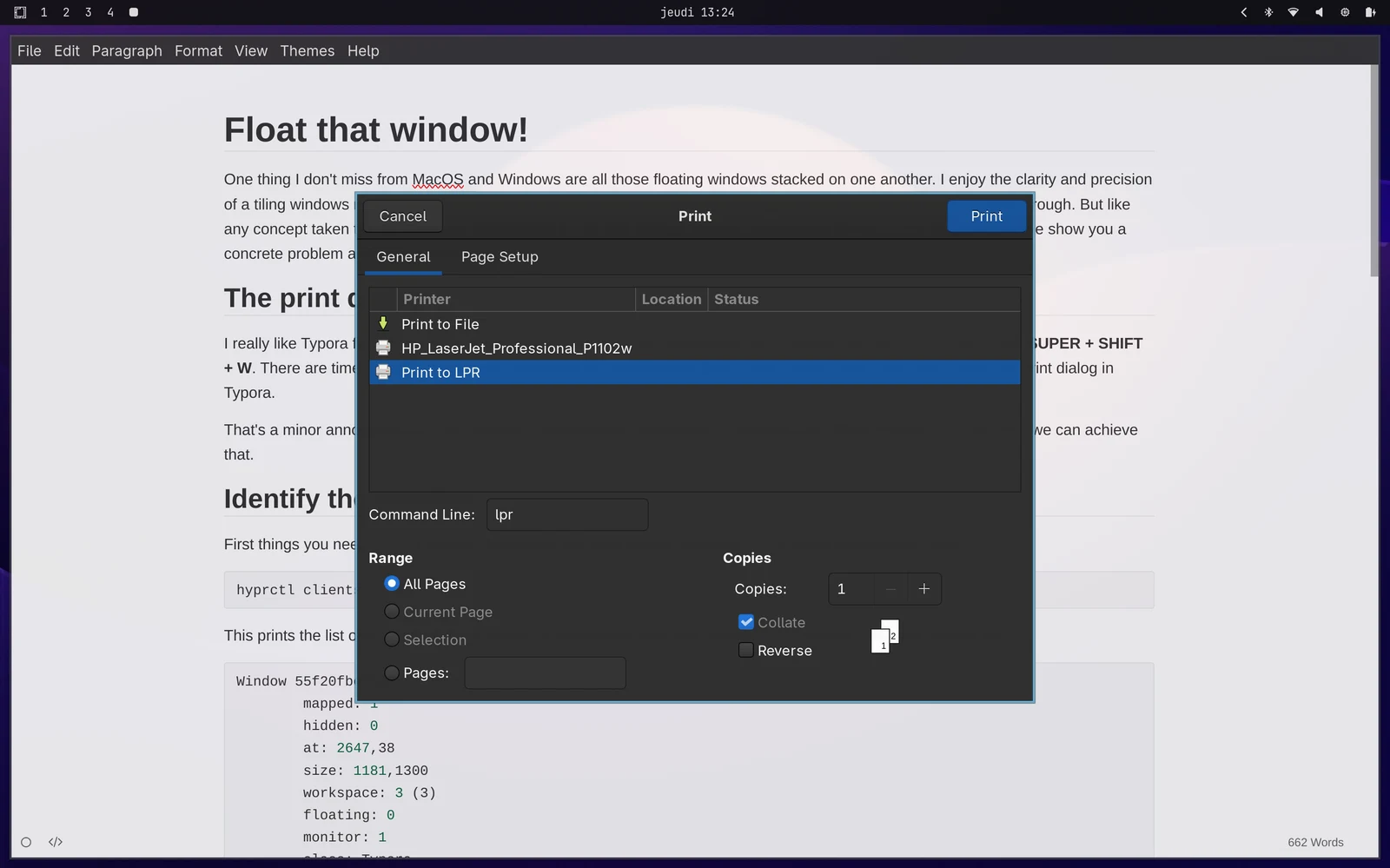
Save the files, run hyprctl reload, and check hyprctl configerrors. Close and reopen the Print dialog so its initial window rules can apply. The result is much nicer:
Reuse the effect with a tag
If this is the only window you want to float, you can stop here.
But if you want to reuse the same behavior for other dialogs later, it is cleaner to tag matching windows and then apply the effect through that tag:
Replace the direct rule above with this version; assign the tag before matching it:
o.window({ class = "^Typora$", title = "^Print$" }, { tag = "+centered-floating-window" })
o.window({ tag = "centered-floating-window" }, { float = true, center = true })~/.config/hypr/windows.lua
Unleash the possibilities
Floating a window is just the beginning. Once you get comfortable with Hyprland customisation, you can precisely control how windows open, where they land, and how they behave across workspaces.
You can also use these rules with special workspaces to keep an app close at hand without leaving it on your main workspace.