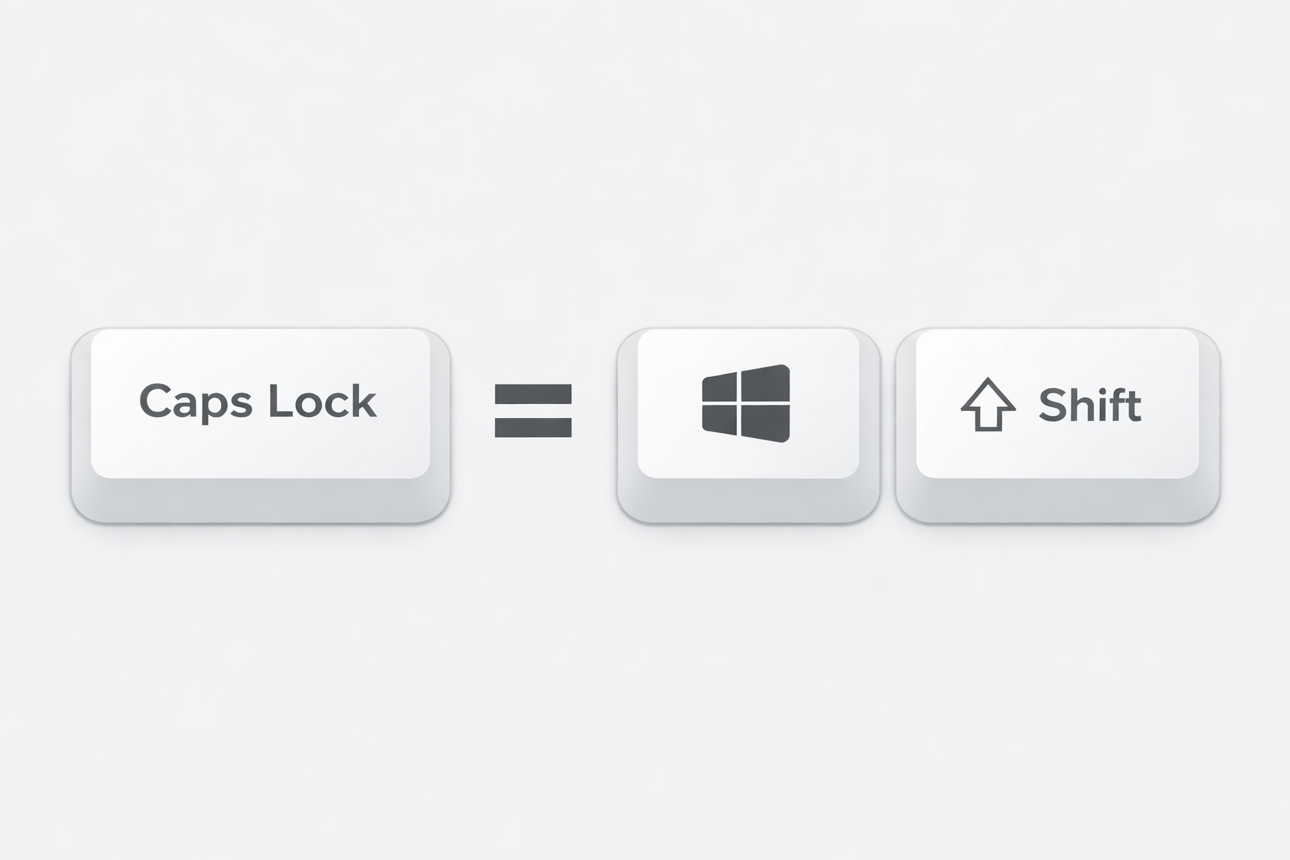
You can already find a lot of posts online that will teach you how to remap your Caps Lock key in Linux. This is common practice since, unless you shout a lot at people on the internet, this key is pretty useless.
Omarchy already remaps Caps Lock to XCompose. I don’t have much use for XCompose, and I prefer to use Espanso for text expansion instead.
So let’s make Caps Lock do something actually useful.
Just Keyding
One of the most powerful key remapping tools on Linux is a utility called keyd. It goes beyond what you can do with key mappings in Hyprland.
The killer feature: you can give a key one behavior when you tap it and a different behavior when you hold it as a modifier.
Here’s what my configuration does:
- Trigger Escape when tapped (perfect for Neovim and other Omarchy TUIs).
- Trigger Super + Shift when held (turning Caps Lock into your app launcher modifier).
1. Install keyd
Install the package from the Arch repository:
sudo pacman -S keyd2. Configure keyd
Copy the following into /etc/keyd/default.conf:
[ids]
*

[main]
# Caps: tap = Esc, hold = Super+Shift
capslock = overload(supershift, esc)

[supershift:M-S]/etc/keyd/default.conf
A quick explanation of that overload(...) line:
escis what you get on a tapsupershiftis the layer you get when you hold
3. Enable the service
Activate the service:
sudo systemctl enable --now keyd4. Test it
Now for the fun part.
- Tap Caps Lock → you should get Escape
- Hold Caps Lock and press
B→ your browser shortcut should fire (Caps is acting like Super+Shift) - Hold Caps Lock and press
5→ it should send the active window to workspace 5 (same as Super+Shift+5)
If you’re an Escape-heavy terminal person, this is a huge quality-of-life upgrade.
What’s next?
I have a few more keyd mappings I want to share, but I’ll save them for another time. Subscribe to the RSS feed or follow me on X for more tips on how to customize your Omarchy setup.